 AnuLaya
Classes
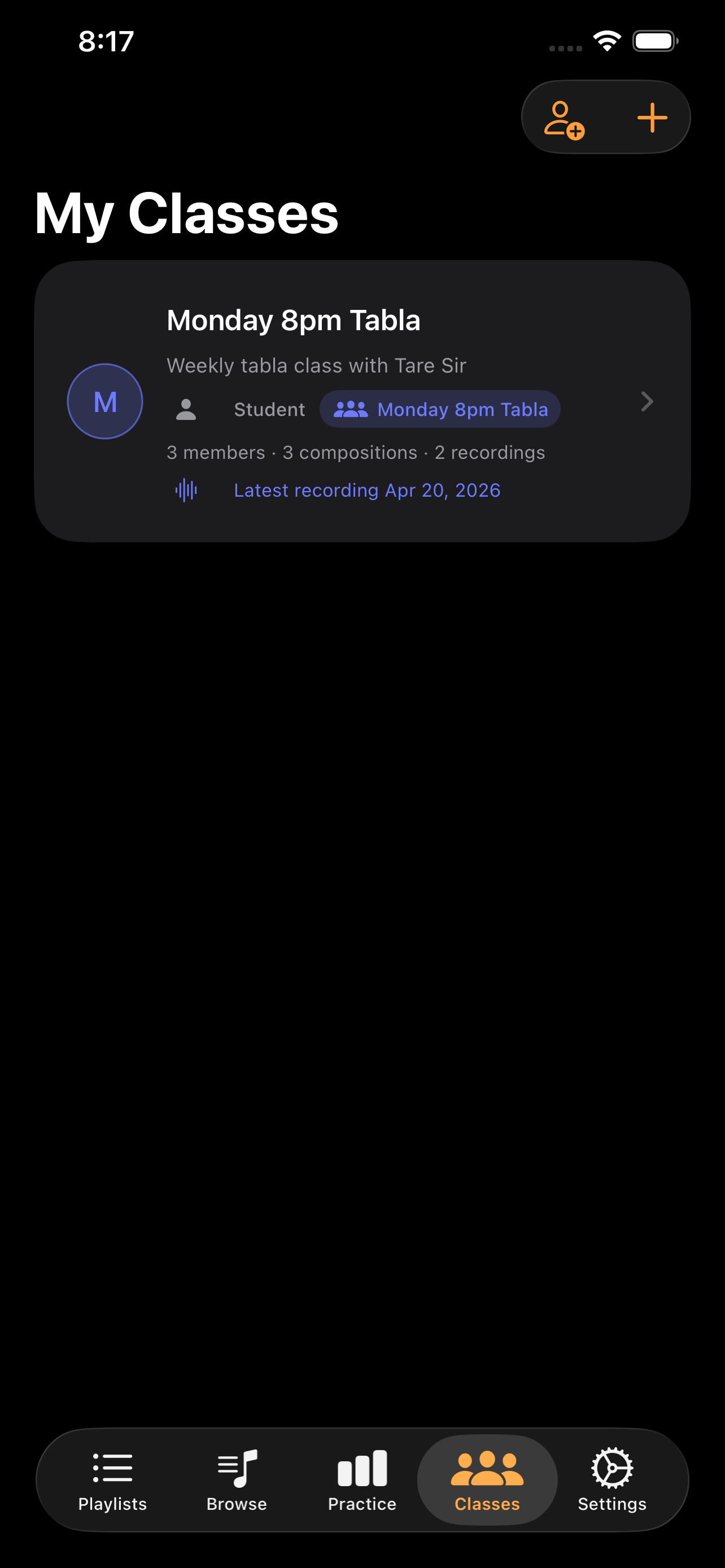
Classes are the core of how teachers and students connect on AnuLaya. A teacher creates a class; students join with an invite code; the teacher posts compositions, recordings, and lesson playlists; students post their own takes for the teacher to review and comment on.
Open the Classes tab to see every class you teach or have joined.
How a class works
A class has:
- An owner — the teacher who created it. They have full control over members and material.
- Members — students who joined with an invite code.
- Optional delegates — senior students or co-teachers the owner has scoped to help run the class.
- Compositions — material the teacher (or a delegate) posted for the class to learn.
- Recordings — student practice clips posted back to the class for review.
- Playlists — lesson sequences the teacher built for this class.
There is no automated scoring; recordings are listened to and commented on by the teacher.
For teachers
Creating a class
- In the Classes tab, tap Create.
- Give the class a name (e.g. Beginner Teentaal or Tuesday Group).
- Optionally add a short description.
Inviting students
- Open the class and select the Members tab.
- Tap Manage Class Access to open invite settings.
- Tap Create Invite Code — a short alphanumeric code.
- Share the code with students (message, email, or in person).
- Students enter the code in the app to join.
Each invite code shows usage and expiration. You can delete codes at any time.
Posting compositions
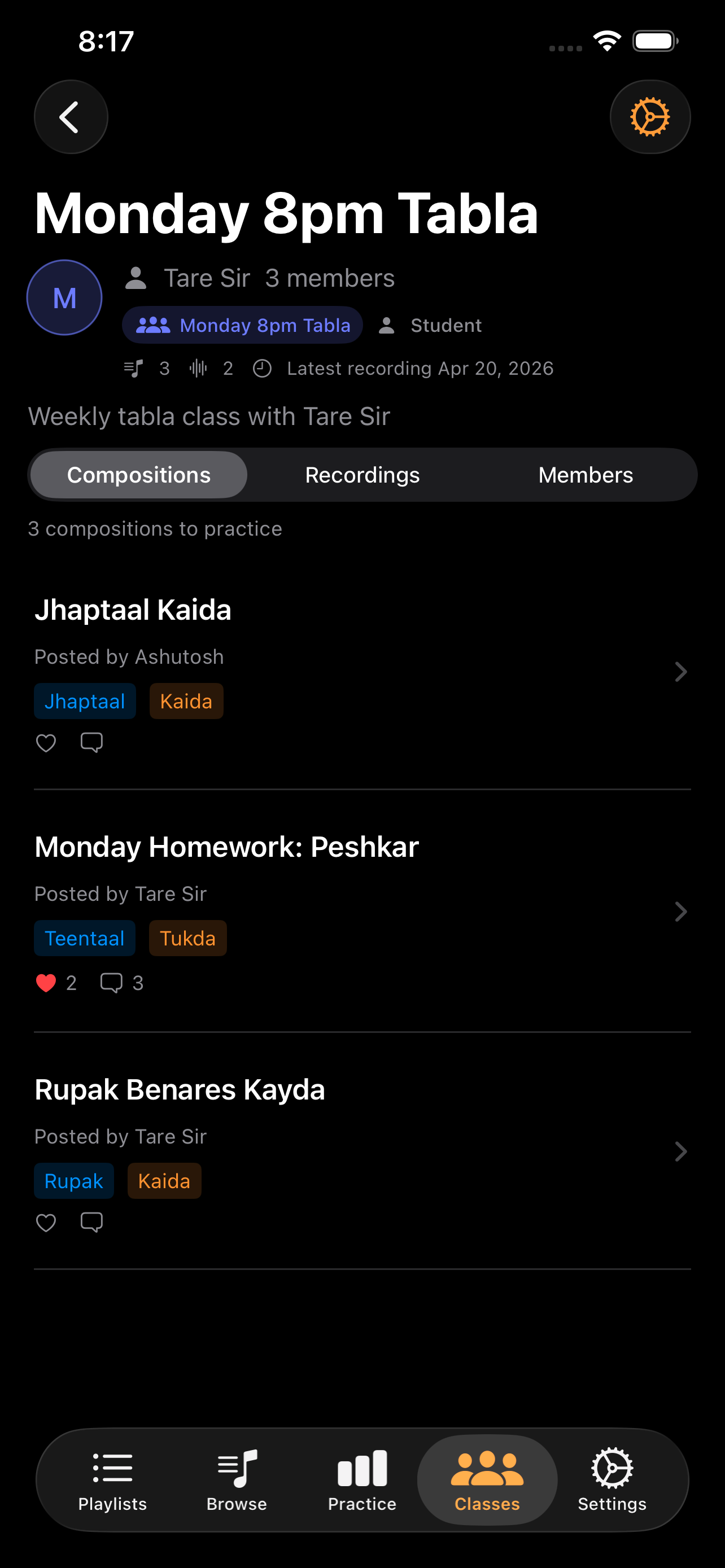
In the Compositions tab of a class, tap Post Composition to choose one of your compositions to share with the class. Posted compositions show Posted by you and a class-coloured pill so students can tell at a glance which version belongs to the class. Use the row's swipe-to-delete or the row menu's Remove from Class to take it down.
Reviewing recordings
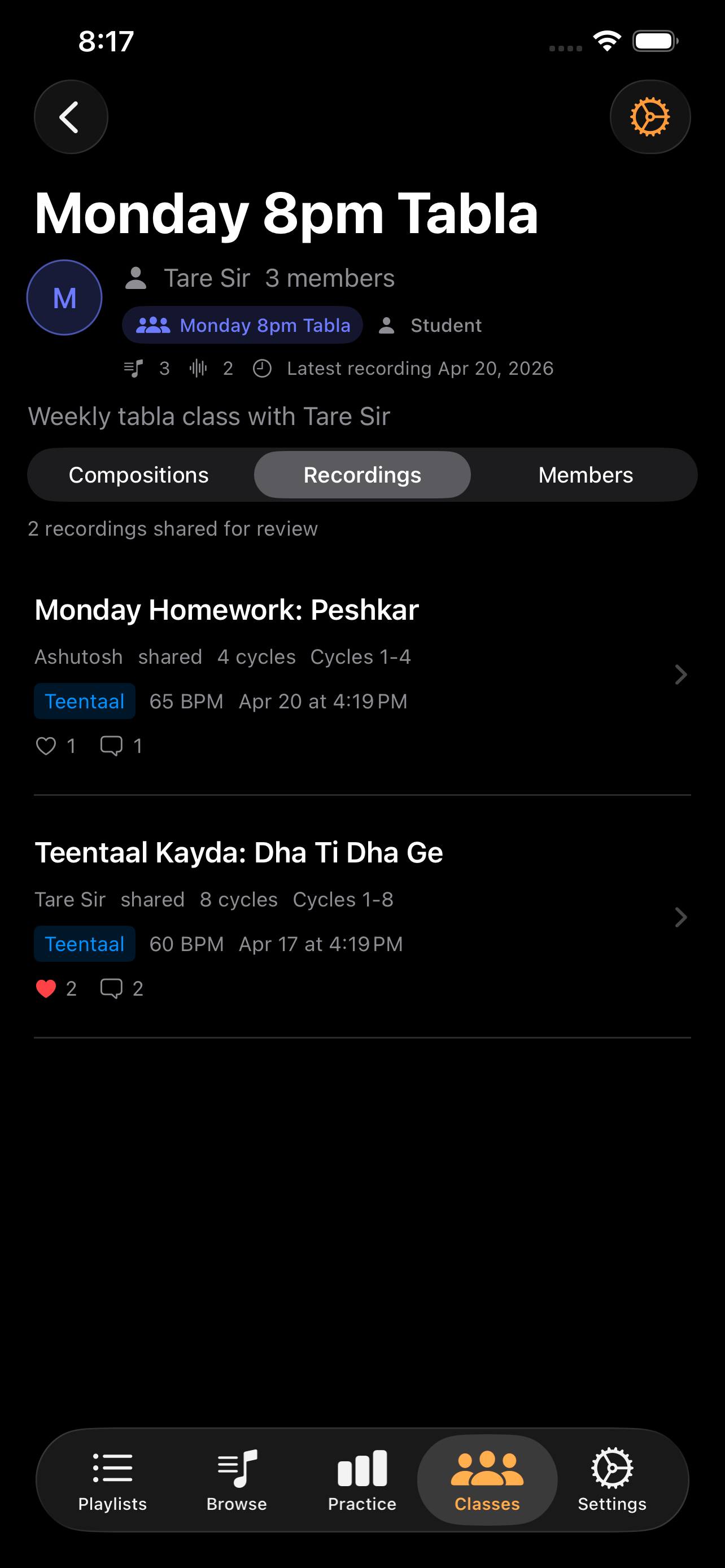
The Recordings tab is your review queue. It lists every clip students have shared with the class. Each row shows who shared it, the cycle range and tempo, the duration, and any caption the student attached.
Tap a recording to:
- Play it back with a beat-aligned scrubber.
- Add a comment — the student sees it next time they open the recording.
- Reply to your own or another teacher's comment if you have a delegate or co-teacher.
A common rhythm is one or two short comments per recording (one on timing, one on tone or expression). Students learn faster from a sentence than a percentage, and AnuLaya intentionally does not produce percentages — your listening is the feedback.
Sharing a lesson playlist
Inside the class, the Playlists entry posts a playlist that only members see. Use this for the working syllabus you maintain for this group — the playlist's per-composition tempos and notes act as your structured curriculum. See Playlists & Lessons for the full reference.
Adding a delegate
If you want a senior student or co-teacher to help triage recordings or post material on your behalf, you can add them as a delegate from the web app. Delegates have a scoped, time-limited role with full audit trail. See Teacher Delegates.
Managing the class
- View members in the Members tab.
- Open Settings (gear icon) to rename the class, manage invite codes, or delete the class.
- Manage delegates from the web app.
For students
Joining a class
- In the Classes tab, tap Join.
- Enter the invite code provided by your teacher.
You can be in any number of classes at once — each is independent, with its own compositions, recordings feed, members, and playlists.
Accessing class content
- Class compositions appear in the Class tab on Browse and inside the class itself under Compositions.
- Class recordings shared by classmates (and your own) appear in the class Recordings tab.
- Class playlists appear in your Playlists tab under Class Playlists.
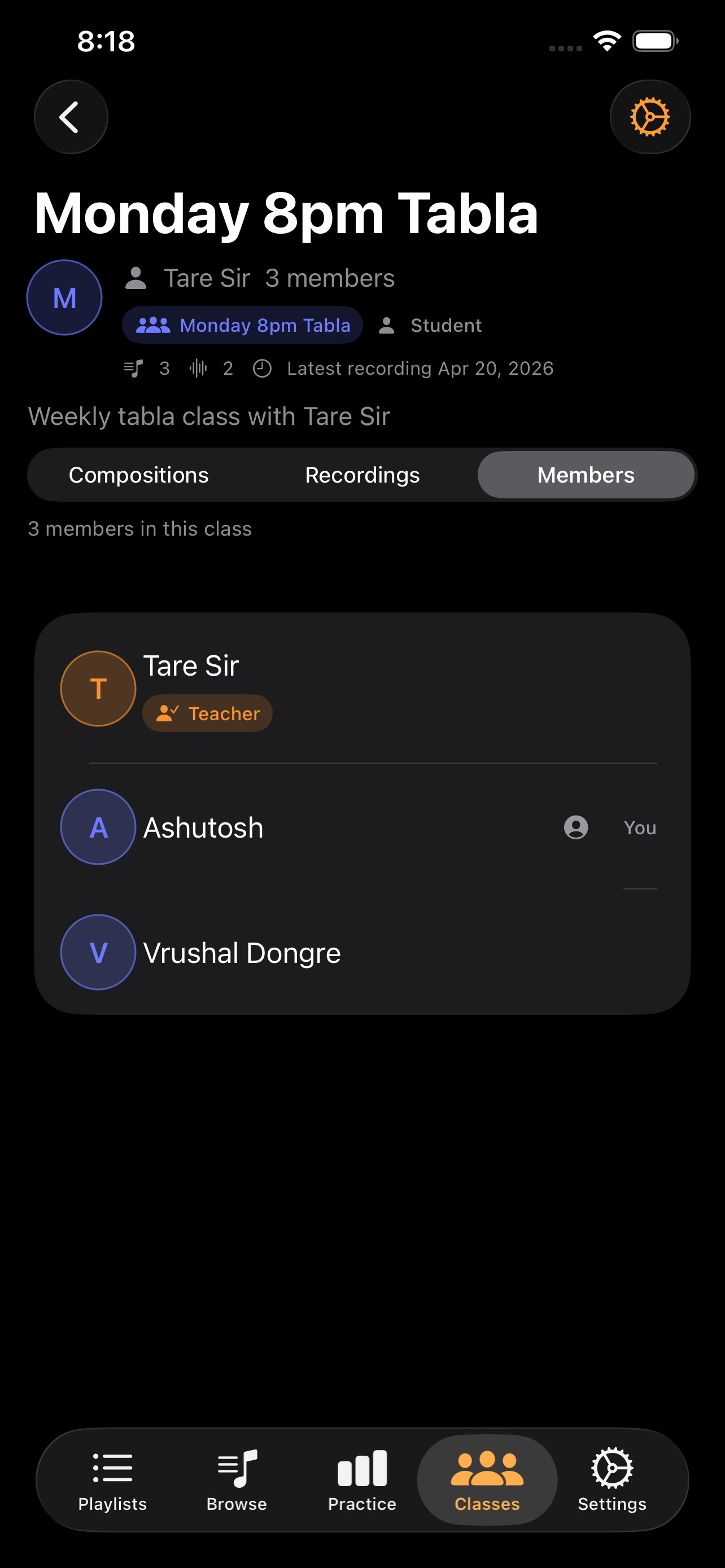
- The Members tab shows the teacher and other students.
Posting a recording for the teacher to review
- After a take in Record mode, the cycle picker opens.
- Pick the cycles you want reviewed and tap Create Clip.
- From the clip sheet, choose Post to Class.
The clip lands in the class's Recordings tab where the teacher (or a delegate) reviews it and leaves comments. You'll see comments threaded under the recording when you next open it.
A short caption on the clip — "Tried the dugun at 90, sam felt unstable in cycle 3" — helps the teacher respond specifically.
Reading teacher feedback
Open the class's Recordings tab and tap any recording to see comments. Comments appear in chronological order. You can reply to a teacher comment to ask a follow-up question.
There are no scores, accuracy percentages, or auto-graded results — only what your teacher (or a delegate acting on their behalf) wrote.
Leaving a class
- Open the class, tap the Settings gear, and choose Leave.
- Your own compositions and practice sessions are not affected; only the class membership is removed.
Where to go next
- Teacher Delegates — the scoped role that lets a senior student help run a class.
- Playlists & Lessons — the lesson-sequence side of teaching.
- Practice Mode — the recording flow students use to submit takes.
- Sharing — what Class visibility means alongside Private and Published.