 AnuLaya
Practice Mode
Practice in AnuLaya is split into three focused surfaces, all reachable from any composition:
- Listen mode — hear the composition before you play.
- Record mode — record yourself playing along with metronome and lehra accompaniment.
- Practice Stats — review every past session, listen back, and turn good takes into reference recordings or class submissions for your teacher to review.
AnuLaya does not auto-score your playing. The audio you record is the artifact your teacher listens to and comments on. If you are studying without a teacher, Practice Stats is still useful as your own listening log.
Listen mode
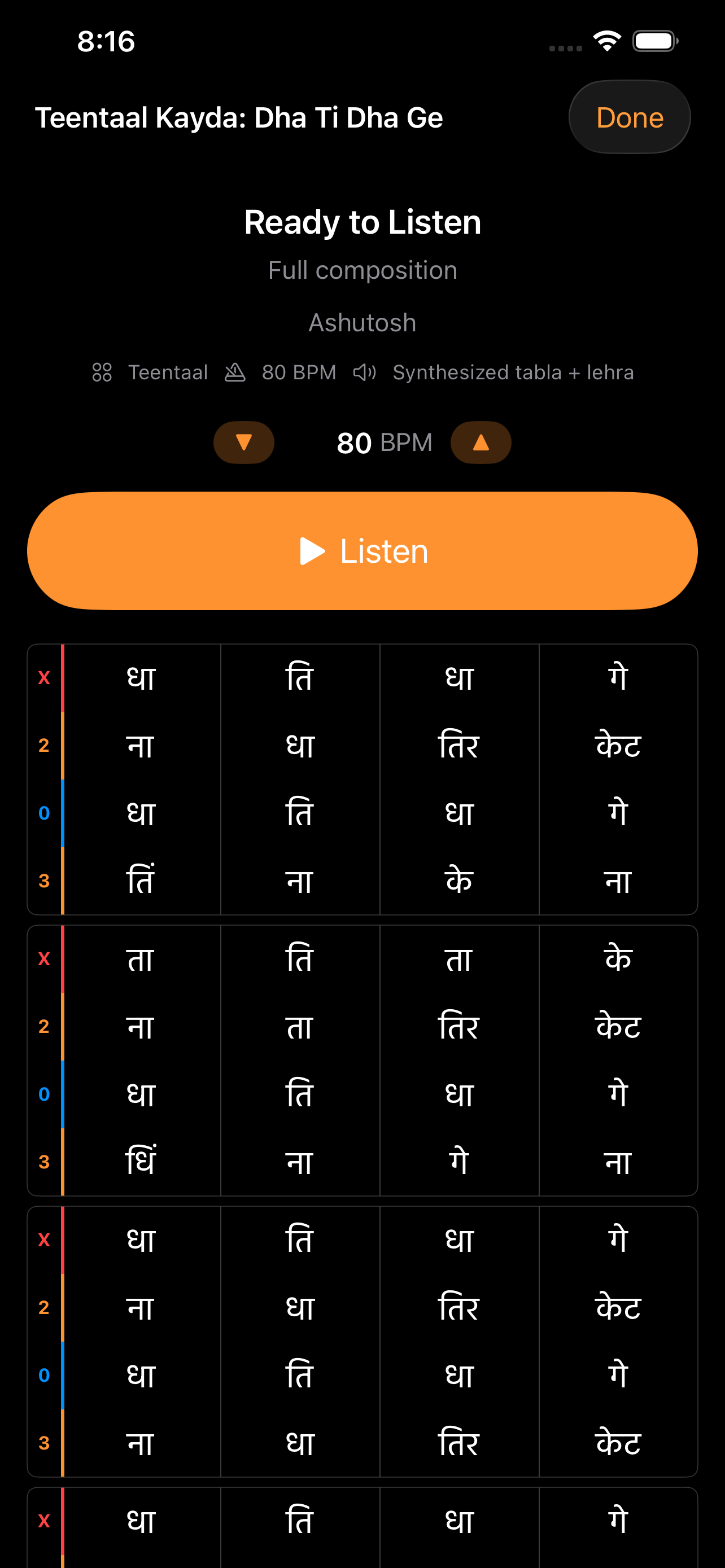
Tap Listen on a composition to enter Listen mode. The Ready screen shows the composition title, taal, tempo, and the playback source. When a composition has an artist reference recording, a Recording / Synthesized segmented picker appears so you can choose between them:
- Recording — plays the artist's reference recording. Reference recordings always play at the tempo they were recorded at, and the tempo control is disabled.
- Synthesized — plays the composition through the built-in tabla samples and lehra. Tempo is adjustable.
When no reference recording exists, Listen mode falls back to synthesized playback automatically.
Tap Listen to start. The cycle position, completed cycles, and elapsed time stay visible while playback runs. Use this mode to internalise a new composition before recording yourself.
If a section is selected from the player grid, Listen mode starts with that section scoped (the header reads Section:
Record mode
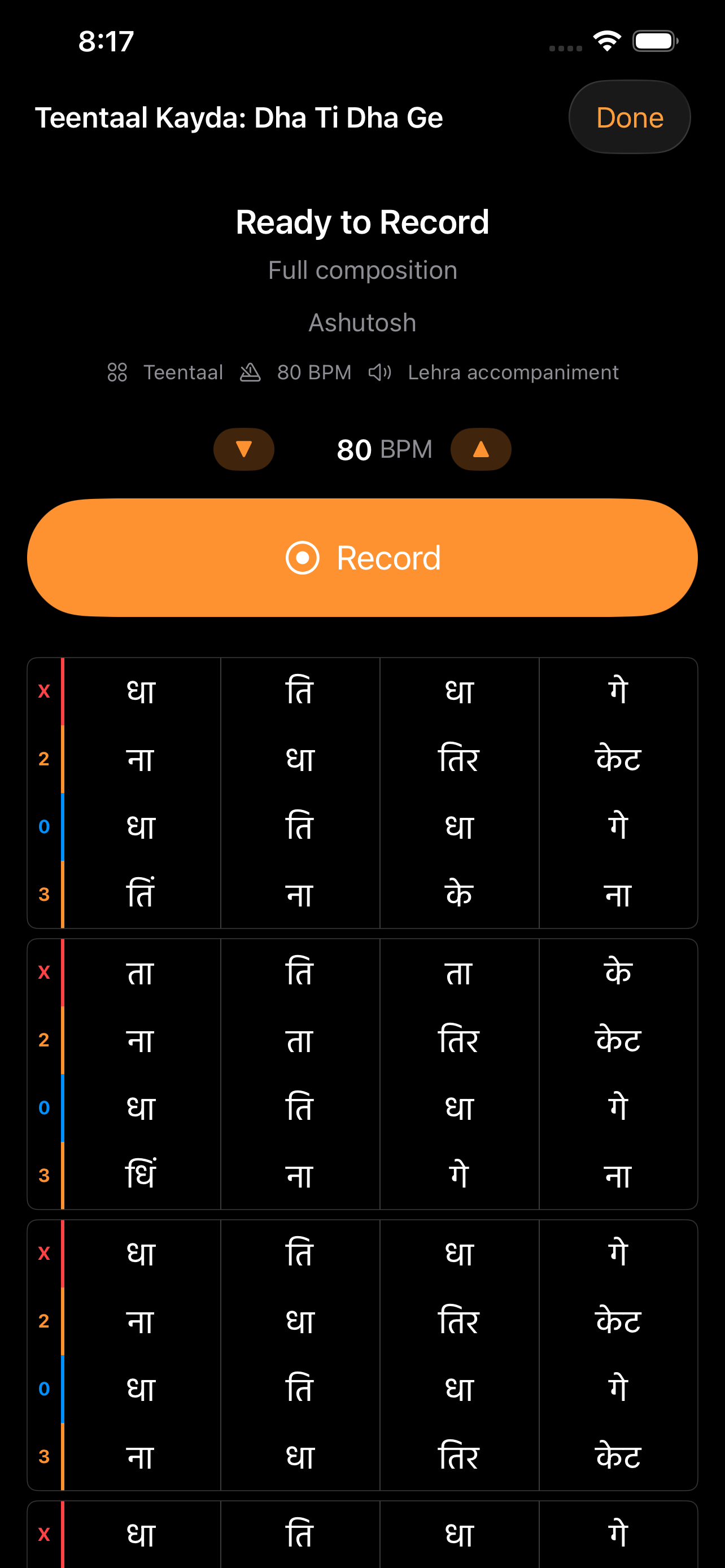
Tap Record to capture yourself playing along. The Ready state confirms what you are about to record before any audio rolls:
- composition title, author, and class context (if shared)
- taal, tempo, and lehra accompaniment
- audio-route warnings — see the section below
- a tempo control, if you want to slow the take down
Tap Record to start. AnuLaya counts in with theka beats and a GO marker on Sam, then switches into the recording display: a large beat counter, REC indicator, completed cycle count, and elapsed time. The grid scrolls with you and highlights the current row.
Tap Stop to end the take. Recordings shorter than 30 seconds are not saved.
Audio routing
Record mode checks the audio route every time you open it:
- No headphones — a yellow banner reads Speaker audio may leak into recording. Use Check Again after plugging in headphones, or Continue Anyway to proceed knowing the metronome will be in the recording.
- Headphones with headset mic — a blue banner reads Using headphone microphone. Enable Use Built-in Microphone in Settings → Recording Audio for better tabla capture.
- Headphones with built-in mic — no warning.
Cycle review and clips
After you stop, AnuLaya opens a cycle picker so you can keep just the cycles you want. The cycle picker is the moment you decide what your teacher will hear — pick the cycles that best represent what you were working on.
Selected cycles can be saved as a clip for:
- Posting to a class — the clip lands in your teacher's review queue. They listen, comment, and reply; you see comments next time you open the recording.
- Sharing — sent via the system share sheet (link or audio file).
- Promoting to a reference recording — attaches the clip to the composition so anyone who opens it in Listen mode hears your version.
The full session is still saved to Practice Stats either way, so you can come back later and create a different clip from the same take.
Practice Stats
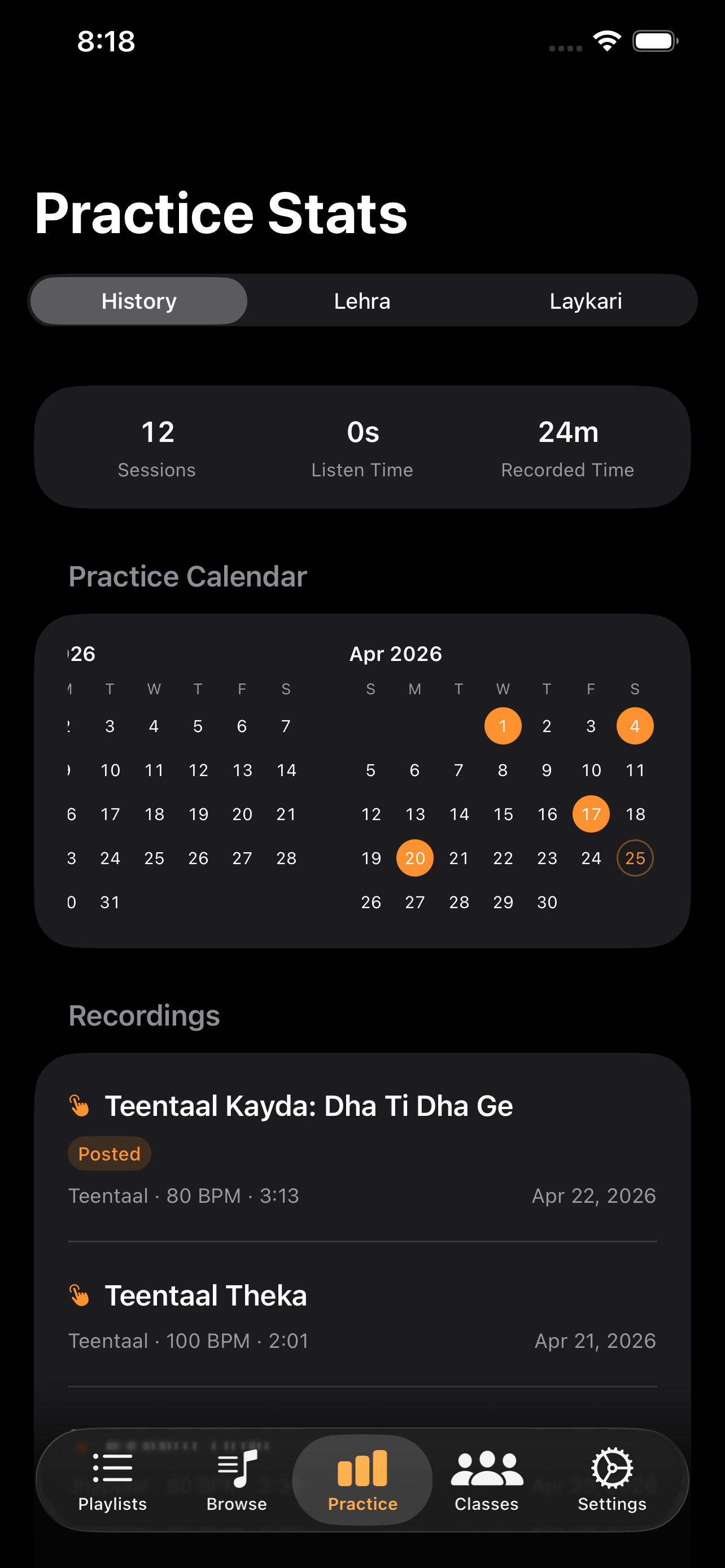
Open the Practice tab to reach Practice Stats. The header switches between two segmented tabs:
- History — every session you have run, grouped by date. Each row shows composition, taal, tempo, duration, and class context.
- Calendar — a month view showing which days you practiced, useful for keeping a streak.
Tap a session to open the detail screen. From there you can:
- Play back the audio recording.
- Create Clip — open the cycle picker to extract a shareable excerpt.
- Record Again — jump straight back into Record mode for the same composition.
- Delete Audio — remove just the audio file but keep the session metadata and stats.
- Delete Recording — remove the session entirely.
Sessions posted to a class show a class pill in the detail header. Open a posted recording from the class Recordings tab to see your teacher's comments threaded under it.
Getting feedback
Recordings posted to a class are reviewed manually — your teacher (or one of their delegates) listens to the audio and leaves comments. There is no automated score, no accuracy percentage, no pass/fail. The value is the listener.
A few habits help:
- Caption the clip. Add a one-line note explaining what you were trying to do or where you got stuck. Teachers respond more specifically when they know the question.
- Pick the cycles that matter. A 30-second clip showing one clean and one struggling cycle is easier to comment on than a five-minute take.
- Re-record after feedback. When a teacher comment lands, jump back into Record mode for the same composition (the Record Again button on the session detail) and try the change. Post the next clip in the same class — the thread continues naturally.
Tips
- Use headphones with the built-in microphone for the cleanest take.
- Start at a slower tempo and step up only when the take feels relaxed.
- Use section practice from the player grid to drill the hard parts before recording the full composition.
- Promote your best take to a reference recording from the cycle picker — Listen mode will then play that audio for everyone who opens the composition.